How to install the UNV Link Mobile Application
IMPORTANT: The steps below are for Othos clients and CCTV devices installed by Othos Telecom ONLY.
From Google Playstore (Android) / App Store (iPhone) download the UNV Link App
Android: https://play.google.com/store/apps/details?id=com.soft.user.link&hl=en_ZA
Apple: https://apps.apple.com/us/app/unv-link-user/id1353278463
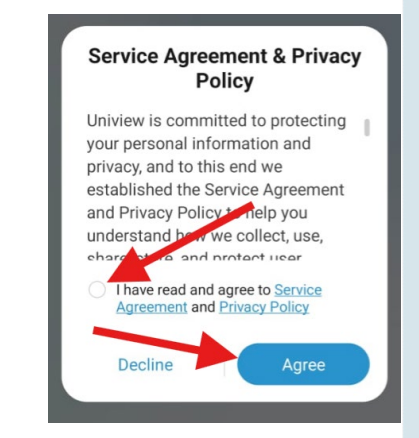
1. Once installed, open the app > Confirm Agreement > AGREE
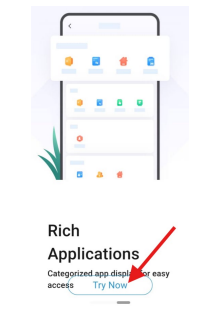
2. Swipe Left twice until you get to Rich Applications > click Try Now
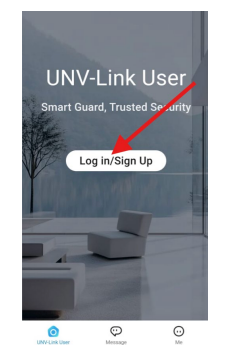
3. Click on Login / Sign Up
4. Select "Sign up"
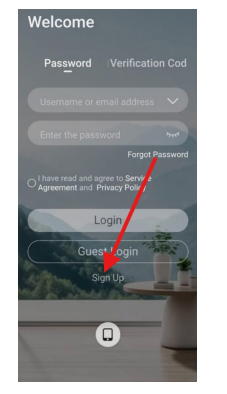
5. Enter your Email
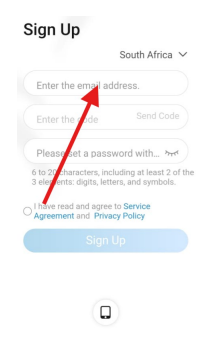
6. After entering your e-mail address, Click the Send Code > You will then be redirected to the validation page. Follow the instruction.
Once validated, check the email sent to the email address > Enter the code > Create a password as instructed.
- Confirm the Agreement Policy
- Click Sign Up
You will then be directed to the Device Page
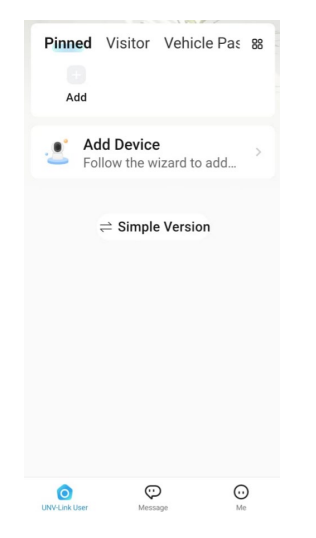
7. To get your device assigned to your account, please request it by sending an email to support@othostelecom.co.za.
If the e-mail received by support is NOT from a verified account holder, the request WILL be denied. If this is the case, kindly request that the authorised account holder send support and email requesting your e-mail address to have access to the CCTV system.
Need any assistance? Open a ticket or send an email to support@othostelecom.co.za
Was this article helpful?
That’s Great!
Thank you for your feedback
Sorry! We couldn't be helpful
Thank you for your feedback
Feedback sent
We appreciate your effort and will try to fix the article